Tuesday, November 8, 2011

Maximizing the Internet bandwidth kecapatan

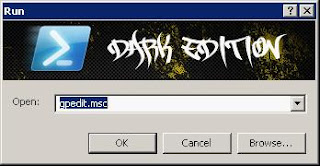
First Click and hold R + window type gpedit.msc crate image below.


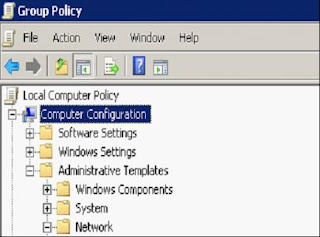
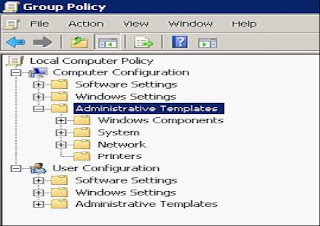
The second click OK, go to the Group Policy click computer configuration \ administrative \ templates \ Network \ QoS Packet scheduler.

Plot the image below.


after that look at the screen right. click the limit reservable bandwidth


So it looks like the following. Select the option enabled. And change bandwidth from 20% to 0%.

Click OK
Simply make it easy. hehe ..^_^

may be useful and greet bloggers.

Sunday, May 8, 2011

sample program with Visual C++

Sample line program with Visual C++


download here this program

download here this program


Sample Polygon program with Visual C++


download here this program


Sample Polyline program with Visual C++


download here this program


Sample 2Dstar program with Visual C++


download here this program


Sample Grandline2D program with Visual C++


download here this program


Sample Polyline2D program with Visual C++


download here this program


Sample Polygon2D program with Visual C++


download here this program


Friday, April 8, 2011

Center the Form you


By default, when we try to create a form in Visual Basic 6 and run it, then the form that will open in a haphazard, usually on the left top corner. If we create applications with a professional looking, of course this is not good. We must arrange it with a good location, right in the middle of the screen for example. Well in this article I'll variety of functions that will make us form an open right in the middle of the screen. This function is very simple, we will move this form to the coordinates of the center of the screen.

The logic of this function is to take a screen width less the width of his past form in for 2. Of course it will make the left corner where the form will be in place the 'residual' empty space left and right of the form will have the same width. For high-form will also be in motion with the same calculation.

Well, here is the function form becomes.

Sub TengahkanPersis (f As Form)
'Center the form that you mean f.Move (Screen.Width - f.Width) \ 2, ((Screen.Height - (f.Height)) \ 2)
End
Sub


To use the form it, put it in the Form_Load procedure. So that form is open, TengahkanPersis function will be called and will put your form in the middle of the screen.

Here's
an example of this function call.

Private Sub Form_Load ()
'/ center the formTengahkanPersis Me'/ this line content with other functions.
End
Sub


Hopefully this article helpful.


Wednesday, March 16, 2011

Sample Point Drawing program with Visual C + +

#include <GL/glut.h>

void drawTitik(int x, int y)
{
glBegin(GL_POINTS);
glVertex2i(x,y);
glEnd();
}

void drawTitik()
{
glBegin(GL_POINTS);
glVertex2i(100,50);
glVertex2i(100,130);
glVertex2i(150,130);
glEnd();
}

void display(void)
{
//clear screen
glClear(GL_COLOR_BUFFER_BIT);
drawDot();
glutSwapBuffers();
}

int main(int argc, char **argv)
{
glutInit(&argc,argv);//Inisialisasi Toolkit
glutInitDisplayMode(GLUT_DOUBLE|GLUT_RGB);
glutInitWindowPosition(100,100);
glutInitWindowSize(640,480);
glutCreateWindow("My First OpenGL");
glClearColor(0.0, 0.0,0.0,0.0);
gluOrtho2D(0.,840.,-240.,240.);
glutIdleFunc(display);
glutDisplayFunc(display);
glutMainLoop();
return 0;
}

OpenGL Configuration in Ms.. Visual C + + 6.0,


After installation Ms.Visual C + + 6.0, then the next step that is required OpenGL configuration computer to be able to create graphical programs in C + + 6.0 Ms.Visual. Important files required for installation of OpenGL are as follows:

1. glut.h
2. glut32.lib
3. glut32.dll

The following configuration steps on Ms.Visual OpenGL C + + 6.0:
  1. Copylah or add glut32.dll files in the directory C: \ WINDOWS \ system. As the following figure:
  2. or add glut.h header files in the directory C:\ProgramFiles\MicrosoftVisual Studio\VC98\Include\GL. As the following figure:
3. Copylah or add glut32.lib library files in the directory C: \ Program Files \ Microsoft Visual Studio \ VC98 \ Lib. As the following figure:

4. OpenGL configuration finished, and you're ready to make a graphics program on Ms.Visual C + + 6.0.
if no OpenGL you can download here

Saturday, January 8, 2011

paid dollars chat

Chatting Indonesia who paid money. Maybe bro cariIndonesia chat room on an overseas website? Here the place, because in addition to chatting with joy and fun, also paid via paypal you know bro

Screenshot sightings

chatnya site


Well, to join bro baseball can simply register on the site Birejji (Cobain deh if baseball believe open www.birejji.com), bro must apply through the URL that introduce Birejji to bro (Here it is delicious). Okay, to register please click banner below


Once signed up to go to the room where the Indonesian people gather to chat, click on "travel" in the lower left of the account bro.

Remember, bro get money from the pot, the bigger the pot the bigger the value of income per chat bro. Income will be paid if it reaches 25cent or about $ 0.25 ... if you want to join click thebanner below ...


ok gan greeting action